

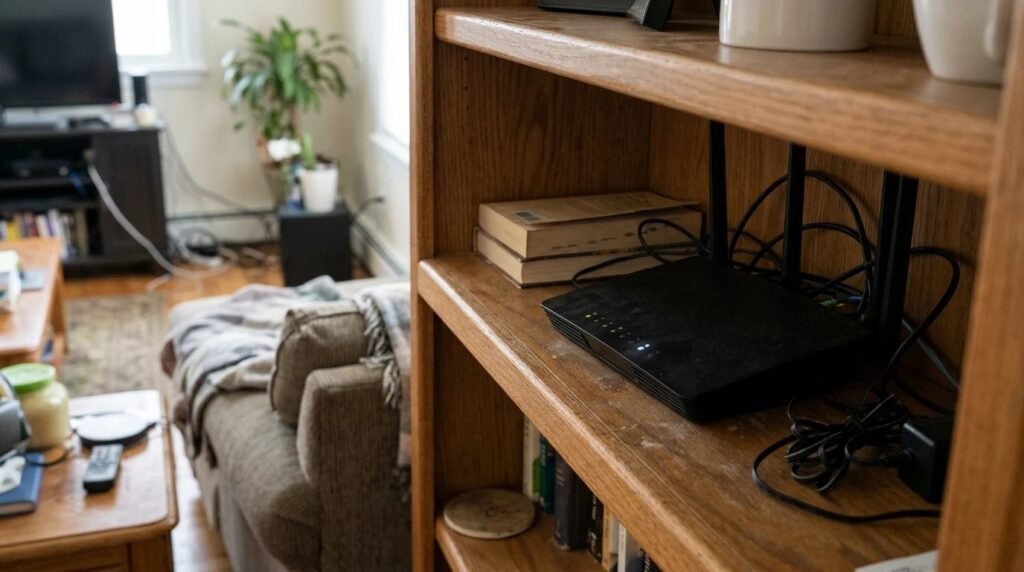
Here’s how to reset a router: for a quick restart, unplug it for 30 seconds and plug it back in; for a full factory reset, hold the small reset button with a paperclip for about 10 to 30 seconds until the lights change. A restart fixes most slow or dropped Wi-Fi, while a factory reset wipes your settings, so only use it when you need a clean start.
Contents
Those two words, restart and reset, sound the same but do very different things. Mixing them up is how people end up with no Wi-Fi name and no password.
Short answer
Try a simple restart first. If the problem keeps coming back, or you forgot the admin password, do a factory reset and then set up the network again with a strong password.
How to reset a router: the 3 ways
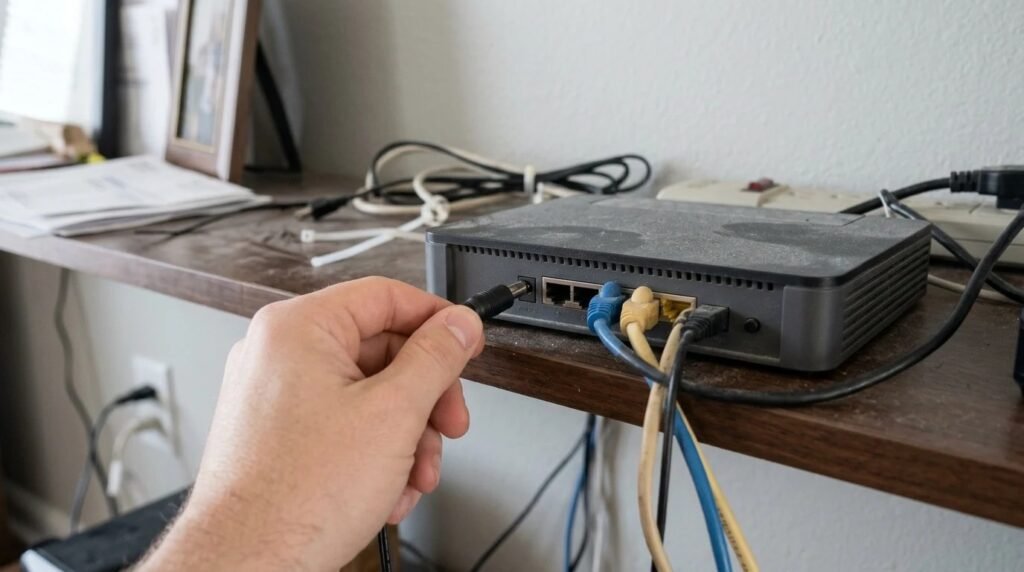
- Restart (power cycle). Unplug the router and the modem, wait 30 seconds, plug the modem back in, wait until its lights settle, then plug in the router. This clears temporary glitches and keeps your settings.
- Restart from the app. Most routers and mesh systems have a “Restart” button in their phone app or web page. It does the same thing without touching cables.
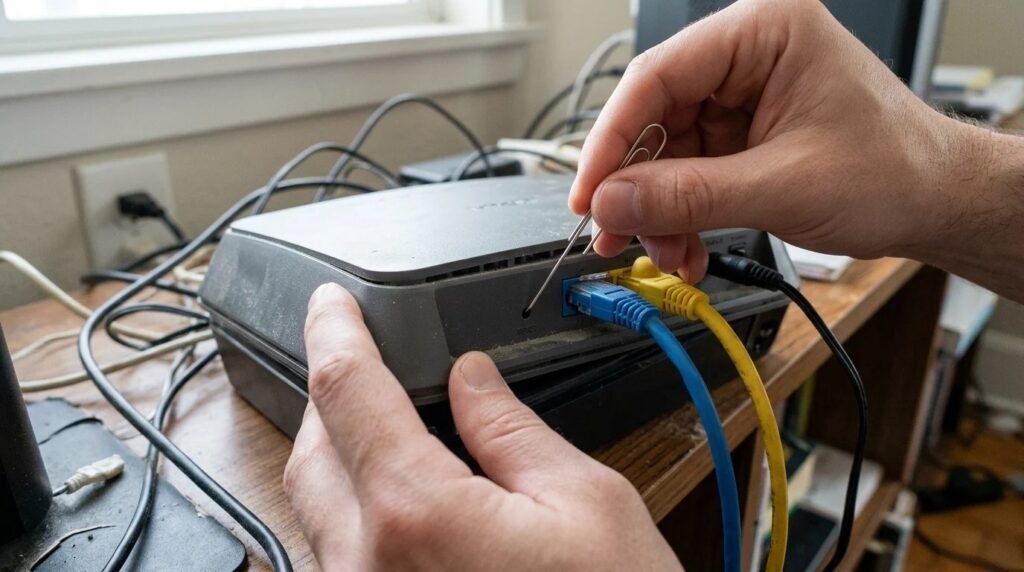
- Factory reset. Find the small recessed hole marked “Reset” on the back. With the router on, press it with a paperclip and hold it, usually 10 to 30 seconds depending on the model, until the lights blink or go off. Let it reboot fully before doing anything else.
Restart vs factory reset at a glance
| Restart | Factory reset | |
|---|---|---|
| — | — | — |
| Time | About 2 to 5 minutes | About 5 to 15 minutes plus setup |
| Keeps Wi-Fi name and password | Yes | No |
| Fixes | Slow speeds, drops, glitches | Forgotten password, bad settings, persistent problems |
| You need to set up again | No | Yes |

What to do after a factory reset
- Log in with the default details. They’re usually on a sticker on the bottom or back of the router.
- Rename the network and set a strong password. Use WPA2 or WPA3 security. The CISA home network tip sheet recommends changing default passwords right away.
- Change the admin password too. It’s separate from the Wi-Fi password.
- Update the firmware. Most apps check for updates automatically after setup.
- Reconnect your smart devices. Plugs, cameras and speakers all need the new network details.

When to reset a router vs call your provider
If the internet light on the modem is off or red, the problem is often outside your home, and resetting the router won’t help. Check your provider’s outage page first. If only Wi-Fi is weak in some rooms, the fix is usually placement or a mesh system, not a reset.
Quick FAQ
Will resetting my router delete anything? A restart deletes nothing; a factory reset erases your Wi-Fi name, password and custom settings. How often should I restart my router? Only when you notice problems, though some people schedule a weekly restart in the app. Is it the router or the modem? If you have one box from your provider, it’s often both in one; restart that single box.
Common router problems a reset can fix
A restart clears the router’s short-term memory, which is why it fixes so many everyday annoyances. Here’s when it’s worth trying:
- Wi-Fi is connected but nothing loads. A restart often brings the connection back in a couple of minutes.
- Speeds suddenly feel slow. Routers run for weeks without a break, and small glitches pile up.
- One device won’t connect. Restart that device first, then the router if it still fails.
- Smart plugs or cameras keep dropping. A fresh start can help them rejoin the network.
A factory reset is the bigger hammer. Save it for when you’ve forgotten the admin password, changed settings you can’t undo, or the same problem keeps coming back after several restarts.
How to reset a router: quick recap
- Restart first: unplug for 30 seconds, it fixes most glitches.
- Factory reset second: hold the pinhole button, then set everything up again.
- Lock it down: new Wi-Fi password, new admin password, updated firmware.
Final thoughts
Knowing the difference between a restart and a reset saves a lot of frustration, and a fresh setup is a good moment to tighten security. If smart gadgets keep dropping off, see why smart devices keep going offline.
Your turn: how often does your Wi-Fi need a restart? Tell us in the comments.
This guide is based on research and manufacturer guidance, not our own testing.
Related guides: Separate Wi-Fi network for smart devices · How to secure your Wi-Fi router