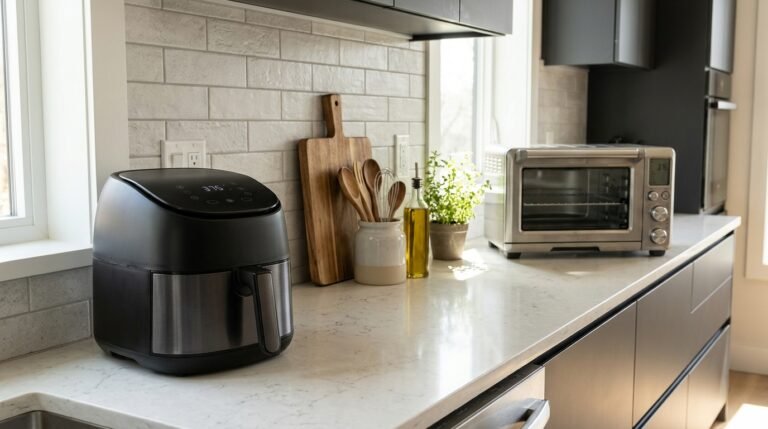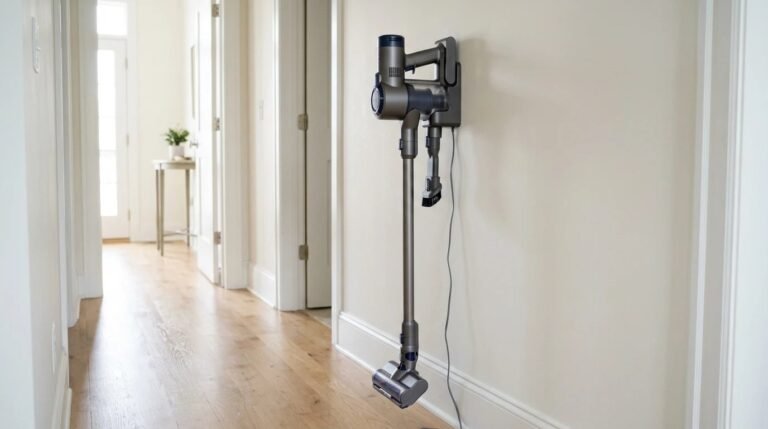


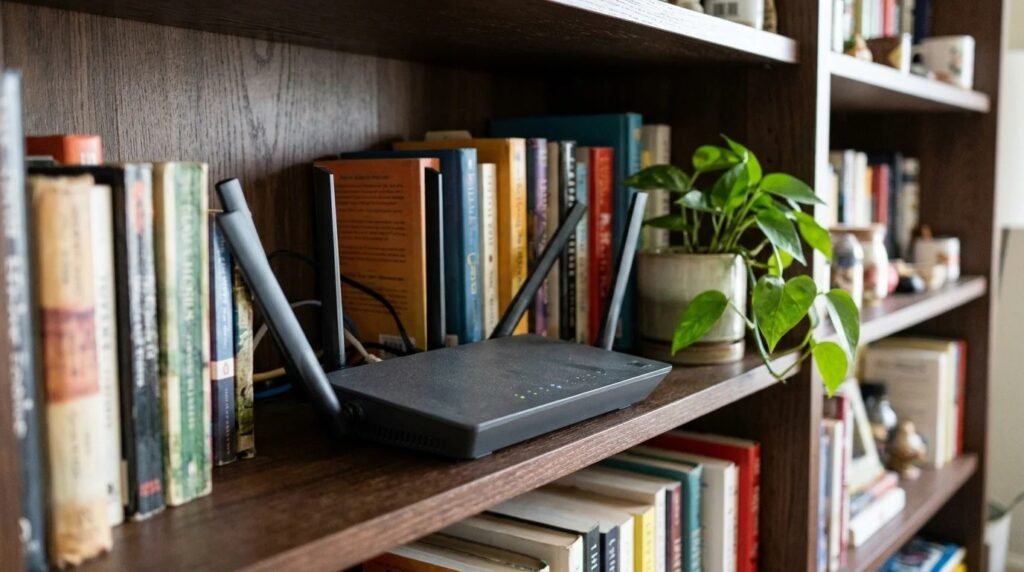
Most of us have more things on our Wi-Fi than we can count. Phones and laptops, sure, but also the TV, a doorbell, a few plugs, the robot vacuum and maybe the fridge. Many of those gadgets get fewer security updates than your laptop does. That’s why people ask about putting them on a separate Wi-Fi network for smart devices.
Contents
It sounds like an IT department job, but on most home routers it’s a few taps in an app.

Separate Wi-Fi network for smart devices: is it worth it?
For most homes with more than a handful of smart gadgets, yes. Keeping smart devices on their own network, often your router’s guest network, puts some distance between them and the computers and phones that hold your email, banking and photos. The FTC recommends a separate guest network to limit who knows your main password, and CISA suggests segmenting your home network as part of good home network security.
Why separating helps
If one cheap gadget had a security flaw, the idea is that a problem stays contained on the smart device network instead of sitting next to your work laptop. It also means you can share the guest password with a babysitter without giving out the one your computers use, and you can change one password without reconnecting everything.
The trade-offs
| Benefit | Trade-off |
|---|---|
| Smart gadgets kept apart from laptops and phones | Your phone may need to be on the same network to set up some devices |
| Guest network password can be shared | Some casting and local control features may not work across networks |
| Easier to change one password | A few devices only support 2.4 GHz Wi-Fi |
| Cleaner device list on each network | Router menus vary and some are confusing |

6 easy steps to set it up
- Open your router app or admin page. Look for “Guest network” or “IoT network.”
- Create the network. Give it a plain name that doesn’t identify you, and use WPA3 or WPA2 encryption, as the FTC recommends.
- Use a strong, unique password. Different from your main Wi-Fi.
- Turn on 2.4 GHz. Many smart plugs and bulbs only use it.
- Move devices one at a time. Reconnect each through its app. Start with simple ones like plugs.
- Test the important stuff. Cameras, doorbells and speakers should still alert and respond.
What to put on which network
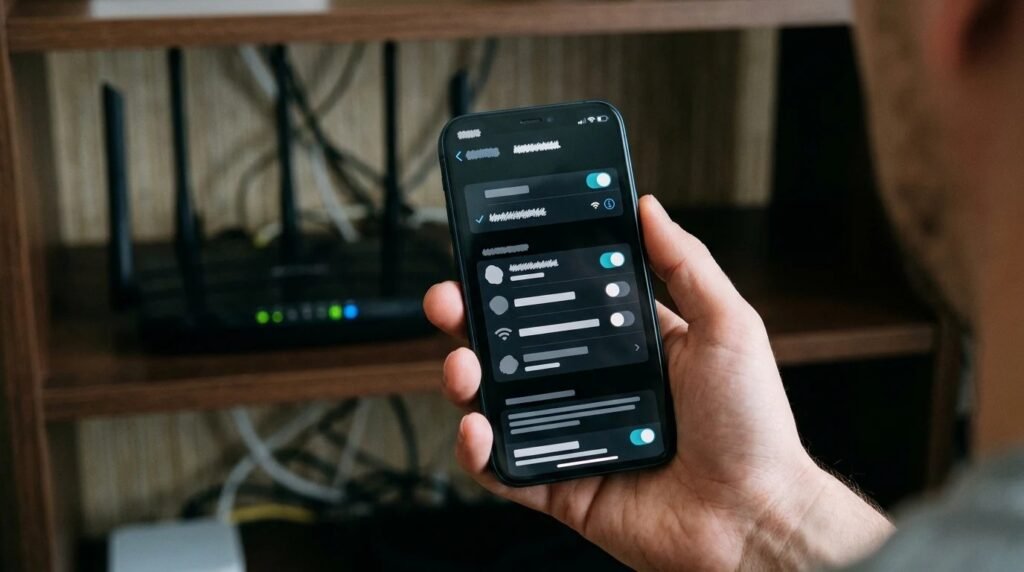
A simple rule of thumb: anything you type passwords into stays on the main network, and anything you mostly control from an app goes on the smart device network. So laptops, phones, tablets and work computers stay put. Plugs, bulbs, cameras, doorbells, robot vacuums, smart TVs and appliances move over. Game consoles and streaming boxes can go either way. If your phone has to be on the same network to set up a gadget, switch your phone over just for setup, then switch it back. It’s a minor hassle you’ll only deal with when you add something new.
Router basics to do at the same time
- Change the router admin password from the default.
- Update router firmware or turn on automatic updates.
- Turn off remote management unless you need it.
- Log out of the admin page when you’re done.
Quick FAQ
Is a guest network the same as an IoT network? Close enough for most homes. Some newer routers offer a dedicated IoT network option with extra controls.
Will my smart speaker still control my TV? Cloud-based control usually works. Local features like casting may need both on the same network.
Do I need a new router? Usually not. Most routers from the last several years support a guest network.
Separate Wi-Fi network for smart devices: a quick recap
- Why: keep less-updated gadgets away from your computers.
- How: use your router’s guest or IoT network.
- Security: WPA3 or WPA2, strong password, updated firmware.
- Test: check cameras and speakers after moving them.
Final thoughts
A separate Wi-Fi network for smart devices is one of the cheapest security upgrades you can make. If gadgets keep dropping off afterward, our guide to smart devices going offline can help.
Your turn: how many devices are on your Wi-Fi right now? Check your router app and share the number in the comments. We bet it’s more than you think.
This guide uses FTC and CISA guidance, not our own testing. Router menus vary, so check your router maker’s instructions.