

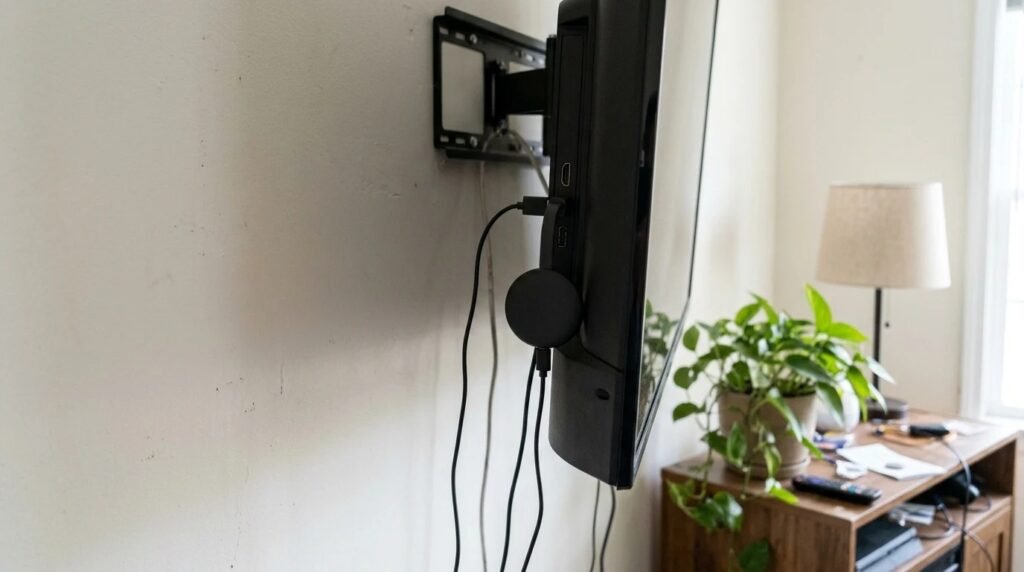
Here’s how to reset Chromecast: unplug it for a minute to restart it, or do a factory reset by holding the button on the device until the light starts blinking and the TV goes blank. For Chromecast with Google TV, you can also reset from Settings, then System, then About, then Factory reset. A factory reset erases your settings, so you’ll need to set it up again in the Google Home app.
Contents
Try a simple restart first. It fixes most buffering, frozen screens and “can’t find device” problems without wiping anything. Keep the factory reset for when nothing else works, since it means going through setup again from scratch.
Short answer
Restart by unplugging the power for about a minute. If problems continue, factory reset with the button on the device and set it up again in the Google Home app on your phone.
How to reset Chromecast: the 3 ways
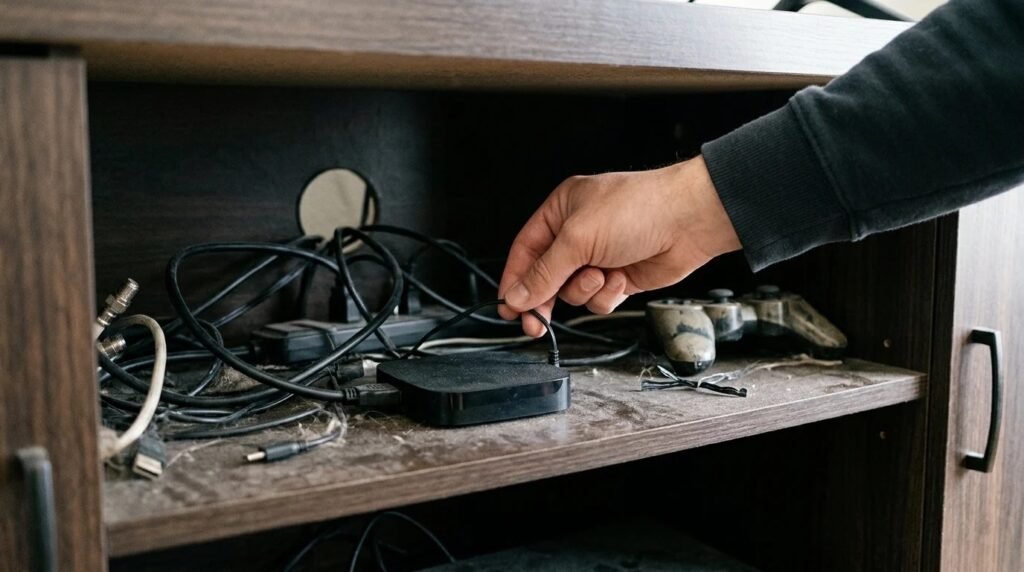
- Restart it. Unplug the power cable from the Chromecast or the wall for about a minute, then plug it back in. Use the included power adapter, not just a TV USB port, if you’ve had trouble.
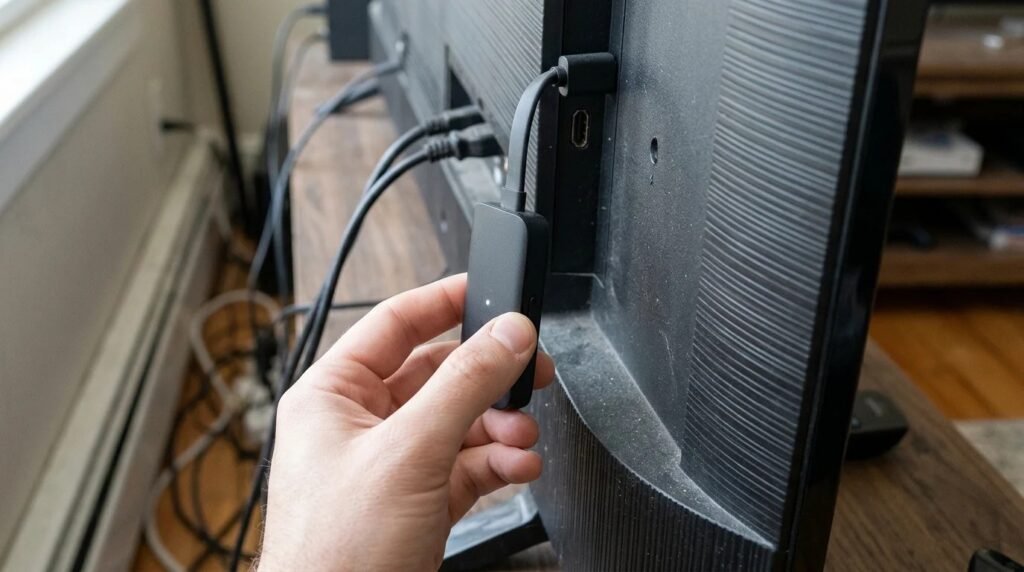
- Factory reset with the button. With the Chromecast plugged in and the TV on, press and hold the button on the device. The light blinks; keep holding until it turns solid white or the TV goes blank, then release. It reboots on its own.
- Reset Chromecast with Google TV from the menu. Go to your profile, then Settings, System, About, Factory reset, and confirm.
Google’s official Chromecast factory reset help page lists the exact button and light patterns for each model.
Restart vs factory reset
| Restart | Factory reset | |
|---|---|---|
| — | — | — |
| How | Unplug for 1 minute | Hold the device button or use Settings |
| Keeps Wi-Fi and accounts | Yes | No |
| Best for | Buffering, freezes, not showing in apps | New Wi-Fi network, selling it, persistent errors |
| Setup needed after | No | Yes, in the Google Home app |
Setting it up again
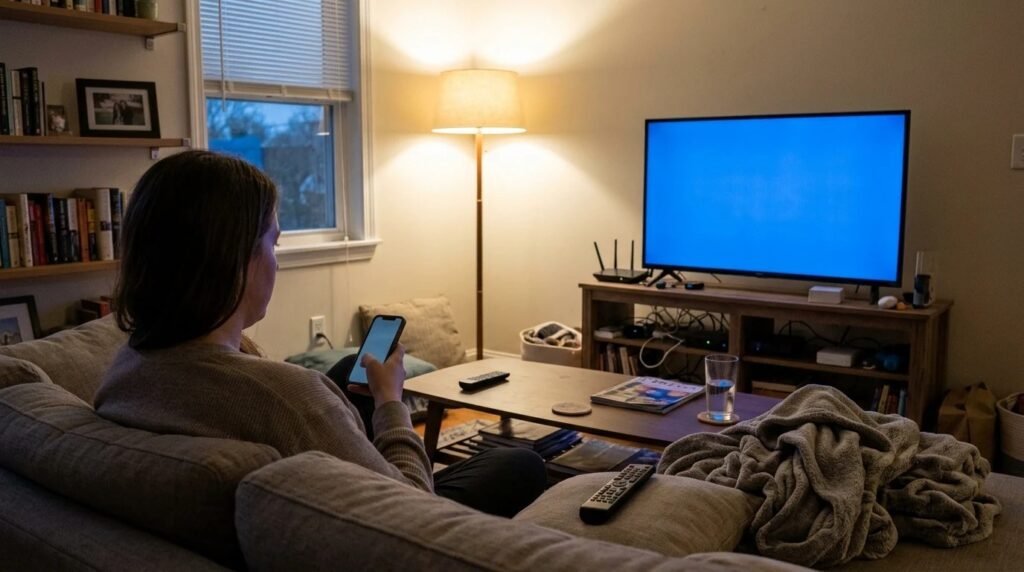
- Open the Google Home app on your phone and tap the plus sign to add a device.
- Stay on the same Wi-Fi as the Chromecast during setup.
- Follow the code on screen to confirm you’re connecting the right device.
- Sign back in to streaming apps on Chromecast with Google TV.
When to reset Chromecast vs check your Wi-Fi
If the Chromecast keeps dropping, the Wi-Fi may be the real problem. Restart the router too, and move the Chromecast away from the back of the TV with the HDMI extender if you have one. Our guide on how to reset a router walks through a clean restart.
How to reset Chromecast: problems it fixes
A reset isn’t always needed, but it’s the right move in a few situations. Before you do it, write down your Wi-Fi password and make sure the Google Home app is installed and signed in on your phone, because you’ll need both a few minutes later:
- You changed your Wi-Fi network or password, and the Chromecast can’t find it anymore.
- Your phone can’t see the device in the cast menu even after a restart.
- Playback keeps freezing on every app, not just one.
- You’re giving it away or selling it, so your accounts come off the device.
- The light stays orange or blinks forever after a restart, which usually means it can’t finish connecting.
If only one app misbehaves, update or reinstall that app first. A full reset is overkill when YouTube works fine and just one streaming service keeps crashing.
Quick FAQ
Will a factory reset delete my apps? On Chromecast with Google TV, yes; you’ll reinstall and sign in again. Why won’t my Chromecast reset? Make sure it has power from the wall adapter and hold the button longer. Does unplugging it reset it? Only a restart; your settings stay.
Recap
- Restart first: unplug for a minute.
- Factory reset second: hold the button until the light changes.
- Set up again: use the Google Home app on the same Wi-Fi.
Final thoughts
Knowing how to reset Chromecast saves a call to support and gets movie night back on track fast. If other gadgets act up too, see why smart devices keep going offline.
Your turn: what made you reset your Chromecast? Share it in the comments.
This guide is based on research and manufacturer guidance, not our own testing.
Related guides: Separate Wi-Fi network for smart devices · Smart home routines ideas